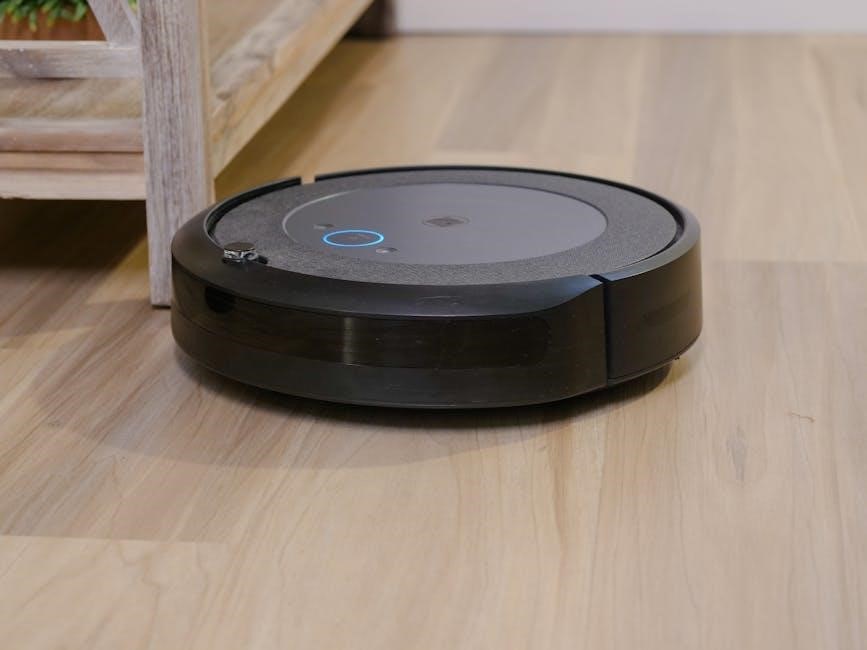
iLife Robot Vacuum Manual: A Comprehensive Guide
iLife offers affordable, user-friendly robot vacuums, even with advanced features like laser navigation and mapping, consistently impressing users with models like the A9 and W400.
iLife robot vacuums have rapidly gained popularity as a convenient and affordable solution for automated floor cleaning. The brand distinguishes itself by offering a diverse range of models, catering to various needs and budgets. From basic models like the A4s to more advanced options such as the A10 and W400, iLife consistently delivers user-friendly devices.
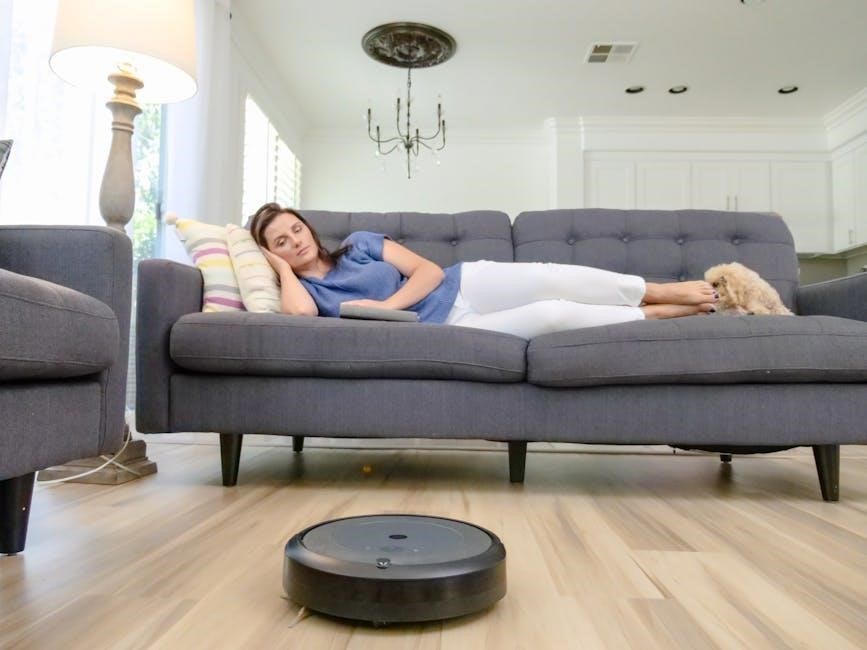
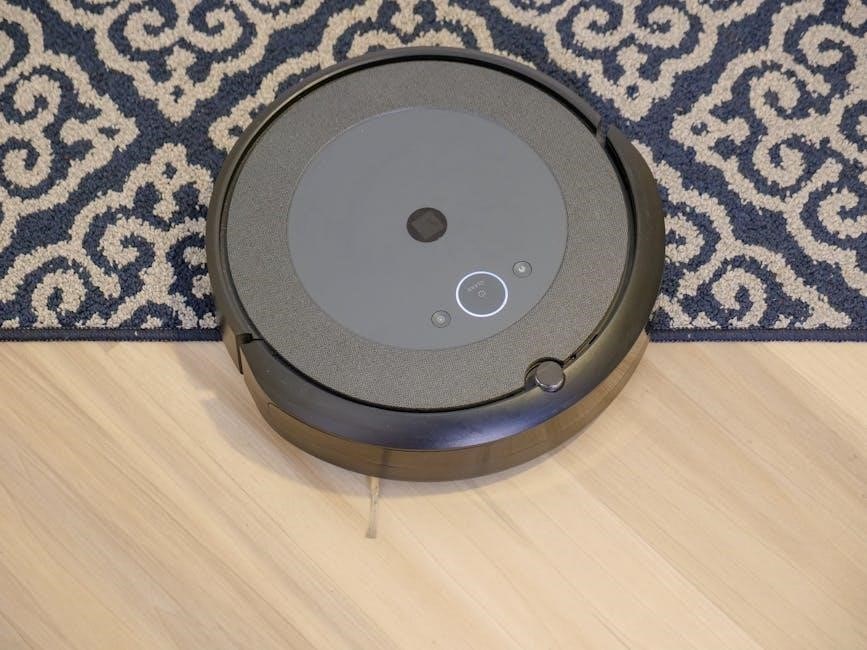
These robots are designed to simplify household chores, effectively cleaning hard floors and low-pile carpets. Many iLife models boast smartphone app connectivity, allowing for remote control and scheduling. Furthermore, some incorporate advanced features like laser navigation and real-time mapping, enhancing cleaning efficiency and coverage. iLife’s commitment to innovation and affordability makes them a compelling choice for consumers seeking a smart cleaning solution.
Understanding iLife Models: A9, A10, V3s Max, A4s, and W400
iLife’s model lineup offers varied features and price points. The A9 is a solid, affordable option with smartphone control and effective cleaning on hard floors. Stepping up, the A10 provides attractive design, excellent navigation, and mapping capabilities under $300. The V3s Max is a more basic, yet reliable, model often bundled with extra accessories like batteries and brushes.
For a no-frills experience, the A4s delivers dust-busting power at a reasonable price, though it lacks advanced features. Finally, the W400 distinguishes itself as a mopping robot, showcasing iLife’s expansion beyond traditional vacuuming. Each model caters to different cleaning needs and preferences, ensuring a suitable option for every home.
Unboxing and Initial Setup
Upon receiving your iLife robot vacuum, carefully unpack the box. Most models, like the V3s Max, include the robot itself, a charging dock, a remote control, extra side brushes, a filter, and batteries. Verify all components are present. Before first use, place the charging dock against a wall in an open area.
Ensure the surrounding space is clear of obstructions. Connect the power adapter to the dock and plug it into a wall outlet. Power on the robot vacuum. Initial setup involves charging the device fully before its maiden voyage – this typically takes several hours. Refer to the specific model’s quick start guide for detailed instructions.
What’s Included in the Box (V3s Max Example)
The iLife V3s Max package is designed for a quick start to automated cleaning. Inside the box, you’ll find the robot vacuum itself, a dedicated charging dock to power up your device, and a convenient remote control for manual operation. iLife thoughtfully includes two replacement side brushes, ensuring continued effective edge cleaning.
A high-efficiency filter is also provided, alongside two batteries for extended runtime. The box dimensions are similar across most iLife models. These components ensure you have everything needed to begin enjoying a cleaner home right out of the box, maximizing convenience and performance.
Charging the Robot Vacuum
Before the first use, fully charge your iLife robot vacuum. Connect the charging dock to a power outlet and ensure it’s placed on a level surface against a wall. Position the robot onto the charging dock, aligning the charging contacts. A solid light on the robot typically indicates a successful connection and charging process.
A full charge usually takes several hours, allowing for extended cleaning sessions. Once fully charged, the indicator light will often change color or turn off. Regular charging ensures your iLife vacuum is always ready to tackle dirt and debris, maintaining optimal performance and convenience for automated cleaning.
Remote Control Operation
The iLife robot vacuum’s remote control provides manual operation and access to various cleaning modes; Use the directional buttons to guide the robot, overriding its automatic navigation. The ‘Start/Pause’ button initiates or halts cleaning cycles. Dedicated buttons activate specific modes like ‘Auto’, ‘Spot’, and ‘Edge’ cleaning, allowing targeted cleaning of specific areas.
The remote also controls the robot’s speed and allows scheduling of cleaning sessions. Familiarize yourself with the button layout for efficient control. Ensure the remote has fresh batteries for reliable operation. This manual control offers flexibility and precision, supplementing the automated features for a customized cleaning experience.
Smartphone App Connectivity
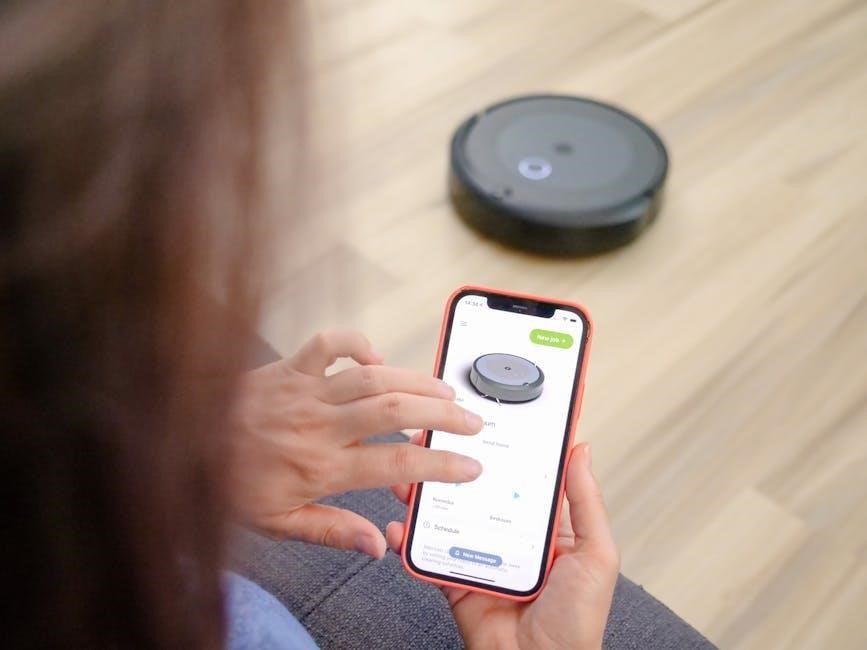
iLife robot vacuums offer smartphone control via a dedicated app, enhancing convenience and functionality. The app allows remote start/stop, real-time mapping visualization, and scheduling of cleaning sessions. Users can adjust cleaning modes – Auto, Spot, Edge – directly from their smartphones, tailoring cleaning to specific needs.
The app also provides access to cleaning history, error notifications, and firmware update options. Connecting your robot to Wi-Fi unlocks voice control compatibility with smart home assistants. Download the iLife app from your app store to unlock these advanced features and enjoy a smarter cleaning experience.
Downloading and Installing the iLife App
To begin utilizing the smartphone control features of your iLife robot vacuum, you must first download and install the iLife app on your iOS or Android device. Search for “iLife” in the Apple App Store or Google Play Store. Ensure you are downloading the official app, published by iLife Robot.
Once located, tap “Install” and allow the app to download and install on your device. After installation, tap “Open” to launch the app. You may be prompted to grant permissions, such as location access, which are necessary for certain features. Follow the on-screen instructions to complete the initial setup.
Connecting Your Robot Vacuum to Wi-Fi
After installing the iLife app, you’ll need to connect your robot vacuum to your home Wi-Fi network. Ensure your smartphone is connected to the 2.4 GHz Wi-Fi network – 5 GHz is not supported. Within the app, navigate to the “Add Device” or similar option, and select your robot vacuum model.
The app will guide you through the connection process, which typically involves putting the robot vacuum into pairing mode (usually by pressing and holding a button on the device). Enter your Wi-Fi password when prompted. The app will then attempt to connect the robot to your network. A successful connection will be indicated within the app.
Cleaning Modes Explained
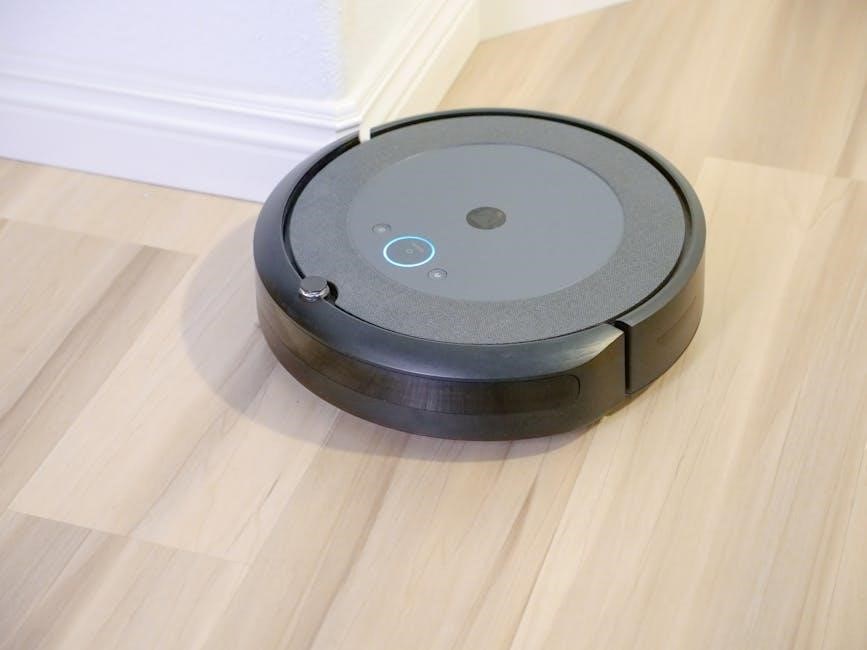
iLife robot vacuums offer several cleaning modes to tackle different messes. Auto Cleaning Mode provides a comprehensive clean of the entire floor area, navigating around obstacles. Spot Cleaning Mode focuses on a concentrated area, ideal for localized spills or debris – the robot spirals outwards to clean effectively.
Edge Cleaning Mode specifically targets edges and corners, ensuring thorough cleaning along walls and furniture. These modes are typically selectable via the remote control or through the smartphone app, allowing you to customize the cleaning process based on your needs and the specific areas requiring attention.
Auto Cleaning Mode
Auto Cleaning Mode is the primary cleaning function of your iLife robot vacuum. Initiated via the power button on the robot itself, the remote control, or the smartphone app, it allows the vacuum to systematically clean your entire floor plan. The robot intelligently navigates around furniture, walls, and other obstacles, ensuring comprehensive coverage.
During Auto Cleaning, the vacuum utilizes its sensors to detect and avoid drop-offs, preventing falls down stairs. It efficiently transitions between different floor types, adjusting suction power as needed. This mode is perfect for routine, whole-house cleaning, providing a convenient and hands-free solution for maintaining a tidy home.
Spot Cleaning Mode
Spot Cleaning Mode is designed for concentrated cleaning of smaller, localized messes. Activated through the remote control or the iLife app, the robot focuses its cleaning power on a specific area, typically a 3×3 foot space. This is ideal for quickly addressing spills, crumbs, or pet hair in high-traffic zones.
The robot spirals outwards from the designated starting point, thoroughly scrubbing the area with increased suction. Spot Cleaning is a time-saver when a full floor clean isn’t necessary, offering a targeted solution for immediate cleaning needs. It’s particularly useful for kitchens and dining areas after meals.
Edge Cleaning Mode
Edge Cleaning Mode focuses on cleaning along walls and around furniture, areas often missed during standard auto cleaning cycles. Initiated via the remote control or the iLife app, the robot systematically follows the perimeter of the room, ensuring thorough cleaning along baseboards and around obstacles.
This mode is crucial for removing dust bunnies and debris that accumulate in corners and along edges. The robot utilizes its side brushes to effectively sweep dirt from these hard-to-reach areas into its suction path. Edge Cleaning complements auto mode, providing a more comprehensive clean for a spotless home.
Maintenance and Troubleshooting
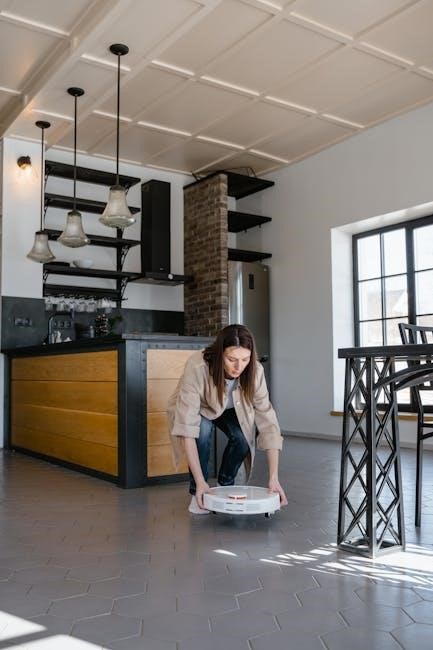
Regular maintenance is vital for optimal performance of your iLife robot vacuum. This includes routinely replacing filters to maintain suction power and air quality, and swapping out side brushes when they become worn or damaged. Don’t forget to frequently clean the dustbin after each use, or as needed, to prevent reduced cleaning efficiency.
Troubleshooting common issues like error codes or navigation problems can often be resolved by checking the user manual or the iLife website. Ensure the robot isn’t encountering obstacles or tangled in cords. Proper upkeep extends the lifespan and ensures consistent cleaning performance.
Replacing Filters
Maintaining a clean filter is crucial for your iLife robot vacuum’s suction power. Filters should be replaced regularly, typically every 1-2 months, depending on usage and debris levels. To replace, locate the filter compartment – usually accessible after removing the dustbin. Gently remove the old filter and insert a new one, ensuring a snug fit.
iLife recommends using genuine iLife replacement filters for optimal performance. A clogged filter reduces cleaning effectiveness and can strain the motor. Regularly checking and replacing the filter ensures your robot continues to deliver powerful and efficient cleaning results, keeping your home spotless.
Replacing Side Brushes
Side brushes are essential for effectively cleaning along edges and in corners. Over time, these brushes wear down and become tangled with hair and debris, reducing their cleaning ability. iLife recommends replacing side brushes every 6-12 months, or sooner if you notice decreased performance.
To replace, locate the brush covers on the underside of the robot. Gently pry them open and remove the old brushes. Insert the new brushes, ensuring they click securely into place. Proper brush installation guarantees optimal edge cleaning and prevents damage to the robot or your floors. Regular replacement maintains peak cleaning efficiency.
Cleaning the Dustbin
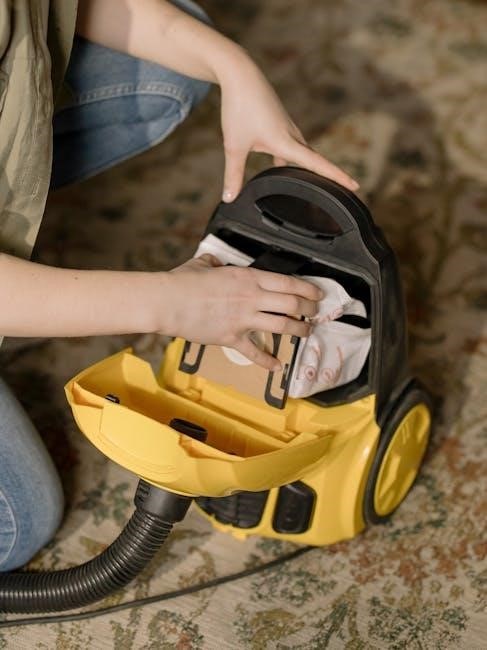
Regularly emptying the dustbin is crucial for maintaining your iLife robot vacuum’s suction power and cleaning performance. A full dustbin restricts airflow, reducing efficiency. It’s recommended to empty the dustbin after each cleaning cycle, or more frequently if you have pets or a dusty home.
To clean, remove the dustbin from the robot and open the lid. Dispose of the collected debris. For a more thorough clean, you can wash the dustbin and filter with water, ensuring they are completely dry before reassembling. A clean dustbin ensures optimal suction and extends the life of your robot vacuum.
Navigating the User Interface
The iLife smartphone app provides a user-friendly interface for controlling your robot vacuum. Upon opening the app, you’ll see a map of your home (if your model supports mapping), cleaning schedules, and various settings. The main screen displays the robot’s current status – cleaning, charging, or idle.
You can initiate cleaning modes, adjust suction power, and set virtual boundaries directly from the app. Explore the ‘Settings’ menu to customize cleaning schedules, manage saved maps, and access firmware updates. The interface is designed for intuitive navigation, allowing you to easily manage all aspects of your robot vacuum’s operation.
Understanding Error Codes
iLife robot vacuums utilize error codes to communicate issues, displayed either on the robot itself or within the smartphone app. Common codes indicate problems like brush entanglement, wheel errors, or low battery. A “bumping” error suggests an obstruction, requiring you to clear the area.
If you encounter an error, consult the iLife app or the online manual at www.iliferobot.com for specific troubleshooting steps. Often, a simple reset – removing and reattaching the robot from the charging dock – can resolve minor issues. Persistent errors may require contacting iLife customer support for further assistance and potential repair options.
Battery Information and Replacement
iLife robot vacuums operate on rechargeable lithium-ion batteries, providing a typical runtime of 90-120 minutes depending on the model and cleaning mode. Battery life gradually diminishes with use; performance degradation is normal over time. To maximize battery lifespan, ensure the robot is fully charged before each cleaning cycle and avoid prolonged periods of inactivity without charging.
Battery replacement requires purchasing a compatible battery from iLife or an authorized retailer. Refer to your model’s specific manual for instructions, as procedures vary. Improper battery handling can be hazardous; always follow safety guidelines and dispose of old batteries responsibly according to local regulations.
Safety Precautions
Prior to operating your iLife robot vacuum, remove all loose objects, cables, and small items from the floor to prevent entanglement or damage. Never use the robot to clean up liquids, as this can cause internal damage and pose an electrical hazard. Keep children and pets away from the robot during operation.
Do not attempt to disassemble or repair the robot yourself; contact iLife customer support for assistance. Regularly inspect the power cord for damage and discontinue use if any issues are detected. Ensure the charging dock is placed on a stable surface and away from water sources. Always power off the robot before performing maintenance.
Liquid Avoidance
iLife robot vacuums are not designed for wet cleaning or liquid pickup. Attempting to vacuum liquids will likely cause severe internal damage, voiding your warranty and potentially creating an electrical hazard. This includes spills, standing water, and even damp surfaces. The robot’s internal components are not sealed against liquid intrusion.
If a spill occurs, ensure the area is completely dry before allowing the robot to operate. Avoid using the robot in areas prone to moisture, such as bathrooms or kitchens during cleaning. Refer to the user manual for specific warnings regarding liquid avoidance, as detailed on www.iliferobot.com. Protect your investment by keeping it dry!
Advanced Features: Mapping and Navigation
iLife robot vacuums, particularly newer models like the A9 and A10, boast impressive mapping and navigation capabilities. These features allow the robot to systematically clean your floors, avoiding obstacles and creating efficient cleaning paths. Laser navigation and real-time mapping technology contribute to a more thorough and intelligent cleaning experience.
The app interface often allows you to view the cleaning map, set virtual boundaries, and designate specific zones for cleaning. This ensures the robot focuses on areas needing attention while avoiding sensitive spaces. Explore the app’s features to fully utilize these advanced functionalities for optimal cleaning performance.
Firmware Updates
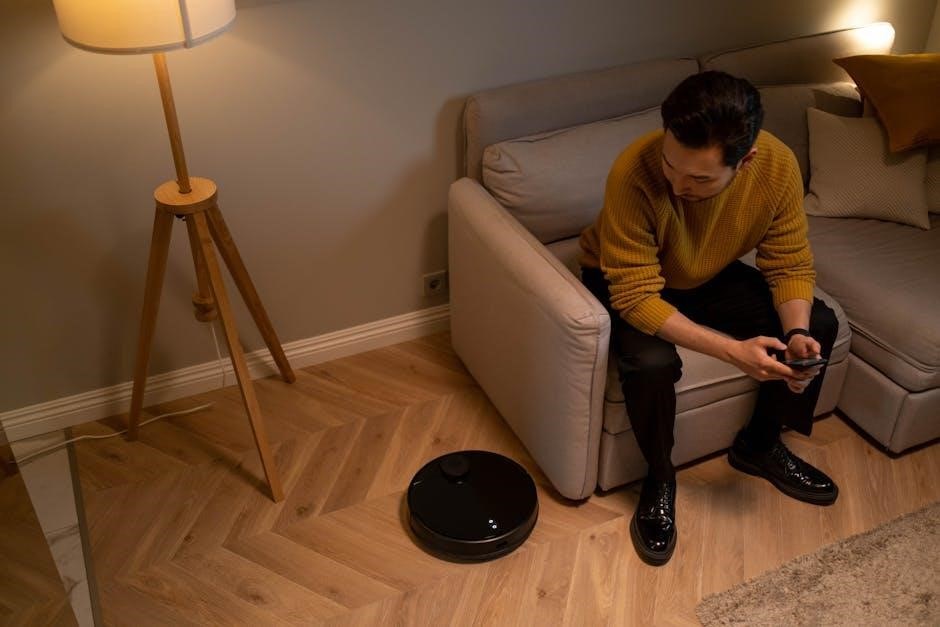
Maintaining your iLife robot vacuum’s firmware is crucial for optimal performance and access to the latest features. Regularly checking for and installing firmware updates ensures your device benefits from bug fixes, improved algorithms, and enhanced functionality. These updates are typically delivered through the iLife smartphone app.
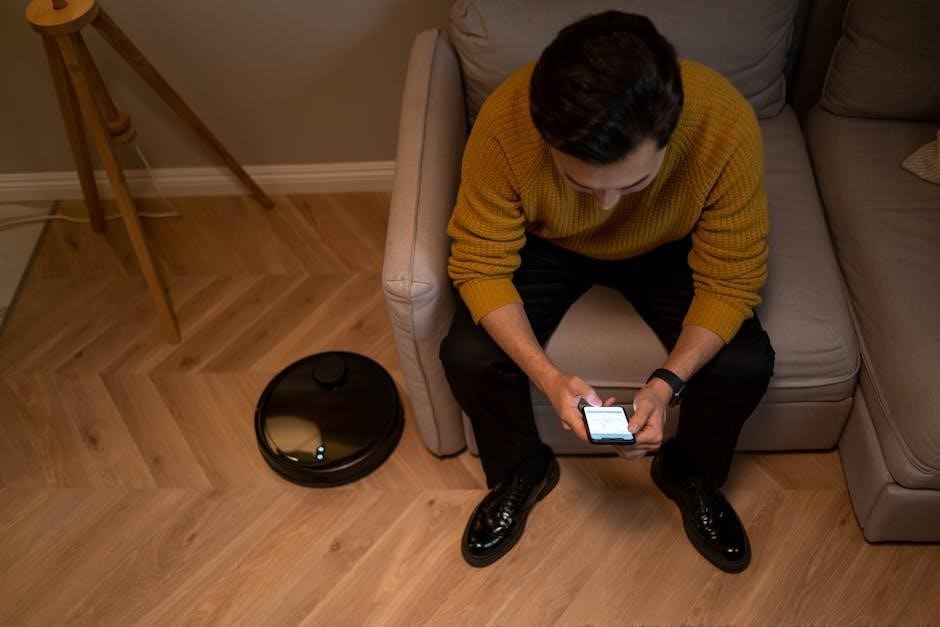
The app will usually notify you when a new firmware version is available. Follow the on-screen instructions carefully during the update process, ensuring the robot remains powered on and connected to Wi-Fi. Interrupting the update could potentially damage the device, so patience is key. Visit www.iliferobot.com for further assistance.
Customer Support and Resources
For comprehensive support and additional resources, iLife provides a dedicated website at www.iliferobot.com. This online hub offers a wealth of information, including frequently asked questions, troubleshooting guides, and downloadable user manuals for all iLife robot vacuum models. You can also access detailed product specifications and explore helpful video tutorials.
If you require direct assistance, iLife’s customer support team is available to address your inquiries and resolve any issues you may encounter. The website provides contact information for reaching out via email or phone, ensuring prompt and efficient support. Utilize these resources to maximize your iLife experience.
Visiting www.iliferobot.com
The official iLife website, www.iliferobot.com, serves as a central resource for all your robot vacuum needs. Here, you’ll discover detailed product information, including specifications, features, and comparisons between different iLife models like the A9, A10, V3s Max, A4s, and W400. Downloadable user manuals are readily available, offering step-by-step guidance on setup, operation, and maintenance.
Beyond manuals, the site hosts FAQs, troubleshooting tips, and access to customer support. Explore video tutorials demonstrating key functions and learn about firmware updates to keep your iLife robot performing optimally. It’s the definitive destination for maximizing your cleaning experience.
Frequently Asked Questions (FAQ)
Q: Can iLife robots vacuum liquids? A: No, iLife robot vacuums, as stated in the ILIFE-V20 User Manual, are not designed to sweep liquids and doing so can cause damage. Q: Where can I find replacement parts? A: Replacement filters and side brushes are often included with the robot or available for purchase on www.iliferobot.com and through various online retailers.
Q: How do I connect my iLife to Wi-Fi? A: Download the iLife app, create an account, and follow the in-app instructions to connect your robot to your home Wi-Fi network. Q: What do the error codes mean? A: Refer to the user manual or the iLife website for a comprehensive list of error codes and their corresponding solutions.